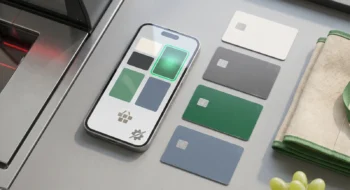
Private space can separate selected apps behind another lock. It is useful only if you choose what belongs there, understand what still leaks outside it, and do not mistake it for a whole-phone anonymity switch.
Here is the useful question before the setup screen: if somebody borrowed your handset for two minutes, which app would make you pause? A second messaging account, a medical portal, a diary, or a file app might qualify. Your normal weather app probably does not. That distinction is the point of Private space.
First, make sure the feature is actually available
Google says Private space requires Android 15 or later, the main device user, a device that is not managed, and no supervised account signed in to the main space. A manufacturer or enterprise administrator can disable it. That means “I cannot find the switch” can be a real compatibility answer, not a hidden-menu problem.
On a supported device, open Settings → Security & privacy → Private space, authenticate with the device lock, then choose whether the space uses that lock or its own. Give the choice a minute. A separate lock is more useful when the people who know your regular device code are also the people from whom you want a boundary.
Put apps there; do not expect an existing app to move intact
This is the step people most often misunderstand. Installing an app in Private space makes a new instance. It does not copy or modify the instance already in the main space, and app data is not moved across automatically. If you need the same service on both sides, expect to sign in again and decide which notifications you are prepared to miss while the space is locked.
That friction is healthy. It forces a clean choice: put the account that needs a boundary in the separate space, rather than pretending one icon can simultaneously be public and private.
The setting worth turning on after setup
In the Private space settings, enable Hide private space when it’s locked if the visible container itself gives away too much. Google notes that the change takes effect the next time the space locks. Keep one practical recovery path in mind: when the space is hidden, you can reach it again through the Private space entry in All apps or through Settings after authenticating.
Do not install background-critical apps there casually. Google’s help guidance warns that apps in a locked Private space cannot provide background functionality in the normal way. A fitness tracker, an alarm-dependent workflow, or a message account you expect to notify you immediately may be a poor fit.
Use a different Google Account when the boundary needs to survive the cloud
A separate handset lock does not automatically isolate a familiar cloud account. Google recommends a dedicated account for Private space because a reused account can expose synced photos, files, mail, contacts, browsing history, bookmarks, saved passwords, download history, and recommendations outside the space. The feature protects the local profile boundary; your account choices determine much of what follows you beyond it.
There is no universally correct answer here. A separate account adds setup work. For a single sensitive app, that work is often the price of a boundary that means something.
Official sources
- Google Android Help — Hide sensitive apps with Private space, checked August 18, 2026.
- Android Developers — Android 15 features and changes, checked August 18, 2026.
- Android Developers — Android 15 enterprise changes, checked August 18, 2026.