Confirm the Quest model and OS, request the narrowest camera permission, choose a tested resolution or aspect ratio, and measure the processing cost before a vision feature reaches a real room.
A camera demo often starts with recognition: point a headset at an object, draw a label, celebrate the overlay. The user experiences something more personal. They put a device with cameras on their face in a room that may contain other people, screens, notes and private objects. The product has to earn that access before it earns a computer-vision result.
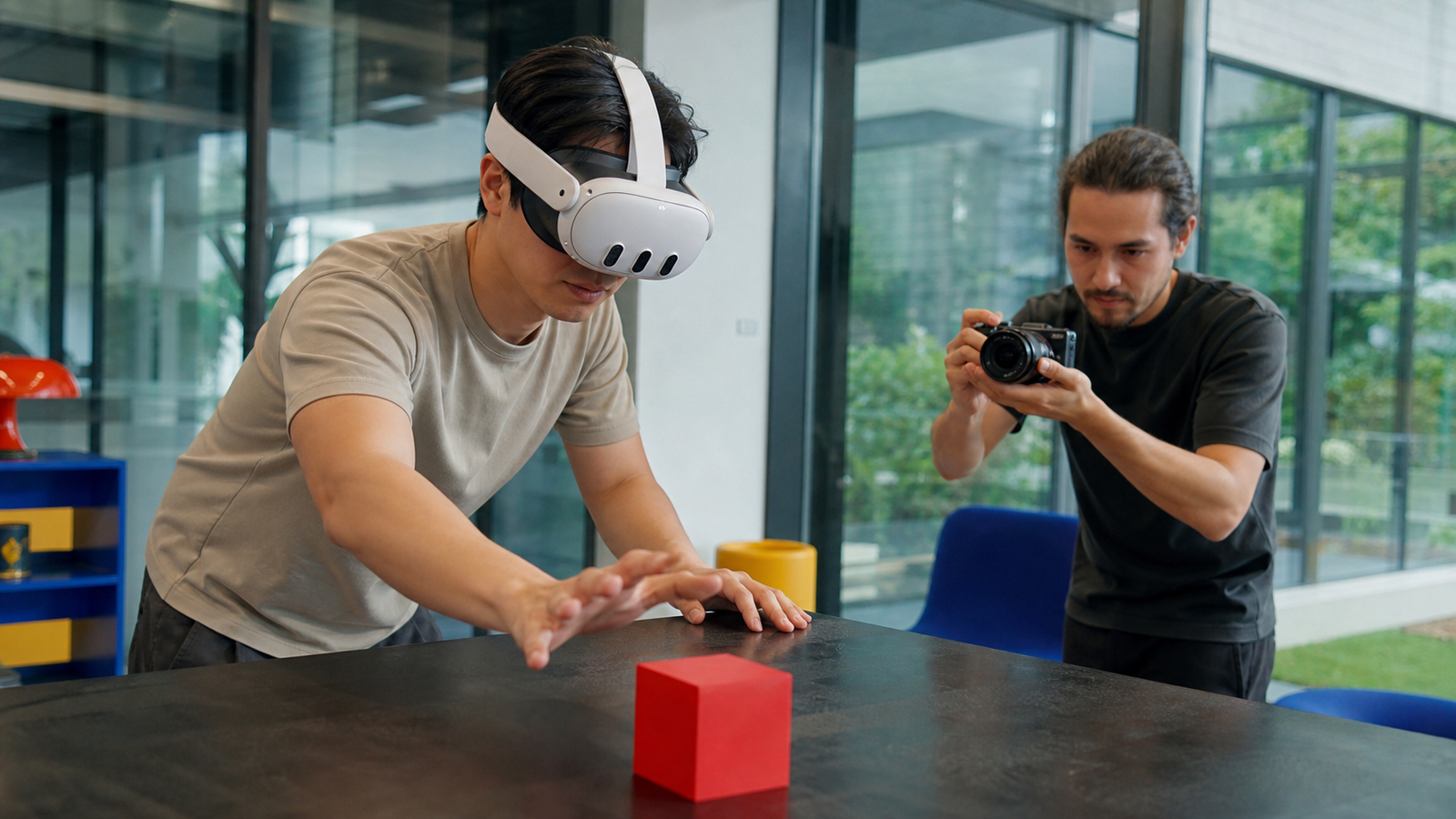
The Quest Passthrough Camera API gives applications access to the forward-facing RGB cameras on Quest 3 and Quest 3S. Meta built the feature on Android Camera2 for ML and computer-vision work. It is not the same as Media Projection, which represents the user’s visible point of view and UI. That distinction should shape the first design review: are you trying to analyse camera data, or show a person what they see?
Start with the actual Quest Passthrough Camera API boundary
Meta’s official overview lists the prerequisites: Quest 3 or Quest 3S, Horizon OS v74 or later, passthrough enabled, and either Android’s CAMERA permission or Meta’s narrower HEADSET_CAMERA permission. CAMERA gives access to passthrough and avatar camera. HEADSET_CAMERA restricts access to passthrough camera. Choose the narrowest permission that serves the feature, then describe the purpose in language a person can understand.
The platform makes two forward cameras available and supports Android camera APIs, Unity integration and, later, an Unreal extension. That flexibility can tempt a team to build a general camera layer first. Begin with the interaction instead. A museum guide may identify a specific exhibit. A training app may detect whether a marker moved. A fitness feature may recognise equipment. Each of those needs a different consent explanation and a different rule for what leaves the device.
Meta classifies camera image data as Device User Data and points developers to its data-use policy. Treat that as a product constraint. Document whether the app processes frames locally, retains any output, sends a cropped frame to a service, or does none of those. A privacy sentence cannot repair an implementation that has no answer.
Do not ask for the largest frame by default
Meta documents a current 1280×960 camera texture and a 1280×1280 option introduced with Horizon OS v83. The square frame expands vertical coverage but does not show the whole passthrough view. The important detail is not the larger number. The available sizes have different aspect ratios, and an app that assumes one shape can crop, stretch or break when the platform chooses another.
Meta calls out a Unity trap: a parameterless WebCamTexture or a request with both dimensions set to zero selects the highest supported resolution. That can break an app that only tested 1280×960. Select a resolution you tested, or filter supported resolutions by the aspect ratio that the feature can handle. The camera stream is input to the user experience, not a benchmark contest.
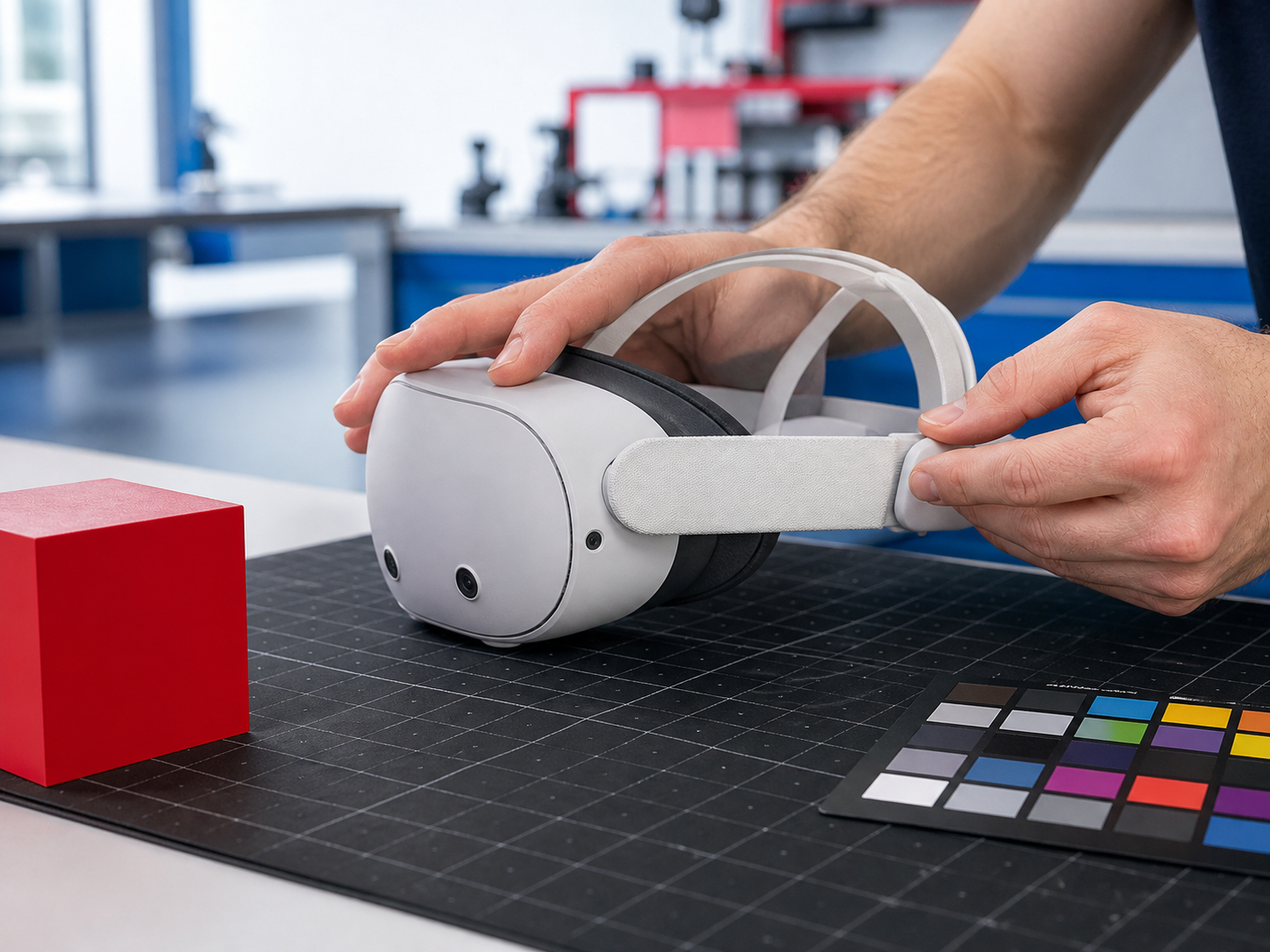
Budget the frame work for comfort
Meta lists 20–40 ms image-capture latency, roughly 1–2% GPU overhead per streamed camera, about 45 MB of memory overhead and a 60 Hz data rate. Those numbers are planning inputs, not permission to spend the budget without measurement. Add a model, texture conversion, rendering and other mixed-reality work, then test on the headset with the complete scene.
Keep the first CV loop simple. Bound the frame rate or sampling cadence, discard work when the user leaves the interaction, and define what the app does when it cannot finish in time. A label that arrives late can be worse than no label in an experience where the person is moving. Meta explicitly advises developers to avoid costly on-device processing so experiences maintain a comfortable frame rate.
- the purpose is concrete and visible;
- the feature handles tested frame shapes;
- the fallback preserves comfort and privacy.
- the app needs vague room surveillance;
- the model has no time or memory budget;
- the fallback becomes an unexplained cloud upload.
Test where the simulator cannot help
Meta says the Passthrough Camera API is not supported in its XR Simulator. That means a simulator can still help with ordinary UI and permission-copy work, but it cannot prove the camera integration. Put a real headset test into the acceptance plan early. Test both supported aspect ratios, permission denial, passthrough off, a busy scene and the interruption path.
For a related systems question, see our Android XR adaptive-quality guide. Camera processing and rendering quality compete for the same comfort budget. A feature team needs a shared rule for which work scales down first.
Hand off a feature, not a camera demo
A publishable implementation handoff names the headset and OS, the permission, the precise user purpose, the frame shape, the processing budget, the data path and the device test owner. Give each one a place in the ticket before the CV model arrives.
That list keeps the Quest Passthrough Camera API where it belongs: inside a transparent mixed-reality feature that users can understand and teams can maintain.
Record the integration status, not just the demo
- Available: a named user purpose and a headset eligibility check.
- Needs device testing: permission recovery, the supported frame shapes and comfort under real lighting.
- Hold: any flow whose fallback changes the privacy boundary without a fresh explanation.