
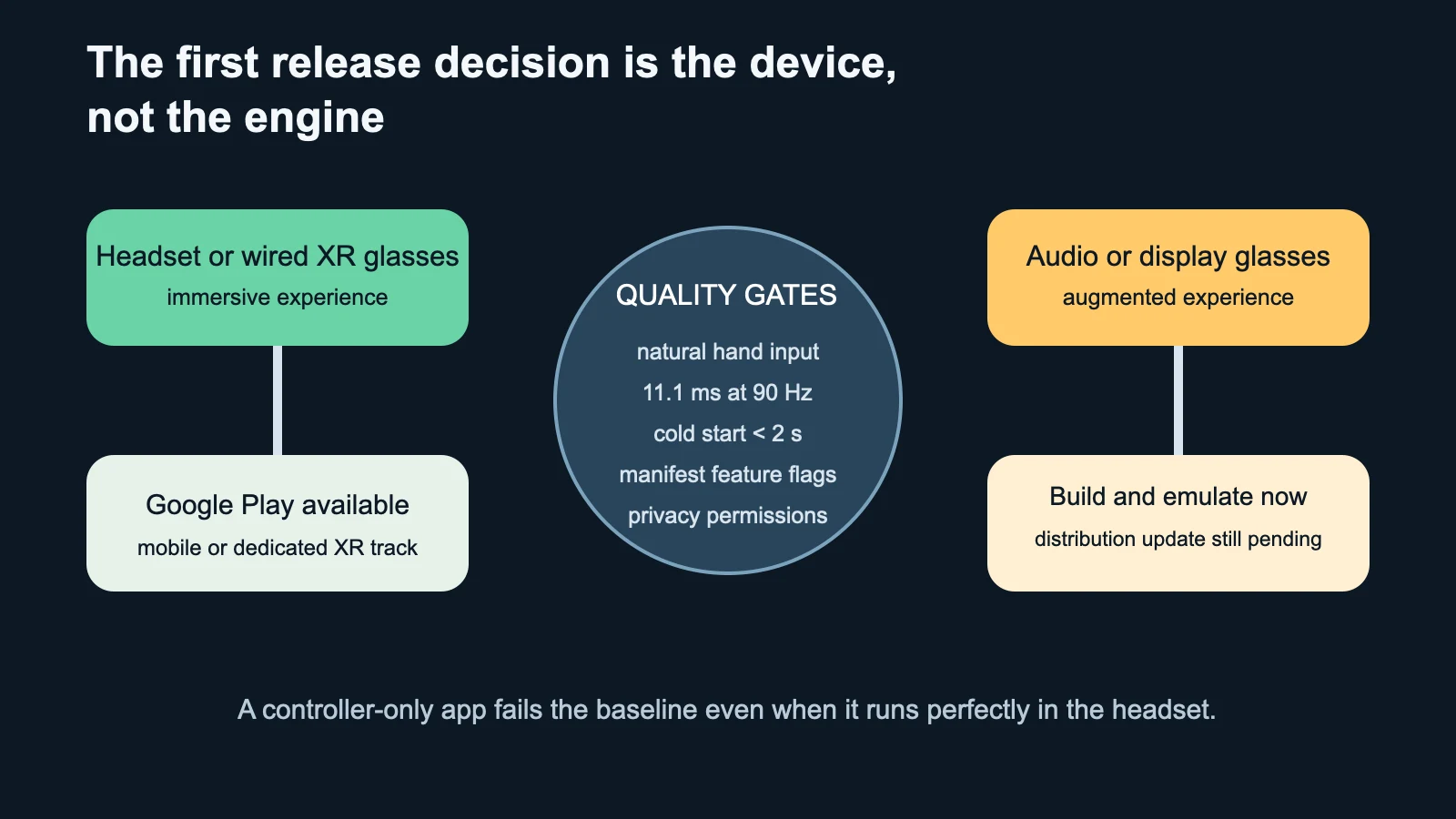
The current distribution path depends on the device and experience. The quality baseline depends on input, comfort, performance and honest manifest declarations.
A controller-only prototype can feel excellent in a headset and still miss Google’s Android XR quality baseline. The July 17 guidelines say natural hand input must be the baseline interaction method and the app should remain usable without controllers. Passing the demo is not the same as passing the release gates.
The first decision is even earlier: what are you shipping? Google Play distribution is currently available for immersive experiences on XR headsets and wired XR glasses. Augmented experiences for audio glasses and display glasses can be built and tested in the emulator, but Google’s distribution guide says to wait for a future update before planning a Play launch.
Gate 1: Name the device and the experience
Write the target in one line: “immersive training app for a headset,” “spatialized mobile app for a wired XR display,” or “glanceable augmented companion for display glasses.” This prevents a release plan from mixing incompatible assumptions about input, field of view, compute, permissions and store availability.
| Product state | Play path | Manifest decision | Release risk |
|---|---|---|---|
| Existing mobile app, no unsupported features | Mobile track; discoverable on XR | Avoid false hardware requirements | 2D usability in XR |
| Existing app with bundled spatial features | Usually mobile track | Configure android.software.xr.api.spatial correctly |
One artifact serves divergent modes |
| Distinct immersive XR variation | Dedicated Android XR track | Spatial or OpenXR feature required | Multiple artifacts under one package |
| New XR-only immersive app | Dedicated Android XR track | Spatial or OpenXR feature required | Device filtering and asset size |
| Augmented audio/display glasses app | No current Play distribution path | Develop and emulate | Do not promise a store launch date |
Gate 2: Choose the track from the artifact, not ambition
An existing mobile app is automatically discoverable on Android XR when it does not require unsupported features. If the app adds spatial UI, 3D models or environments, Google says most teams can still bundle XR features into the existing mobile artifact. Keep the same package name and configure the spatial feature declaration correctly.
Use the dedicated Android XR track when the XR variation has substantially different functionality or permissions and is difficult to serve from one APK. New XR-only apps should use that dedicated track. Jetpack XR apps declare android.software.xr.api.spatial; OpenXR or Unity apps declare android.software.xr.api.openxr. These flags determine device visibility, so an incorrect requirement can hide the app from compatible hardware or advertise it where it cannot run.
Gate 3: Make hands the baseline
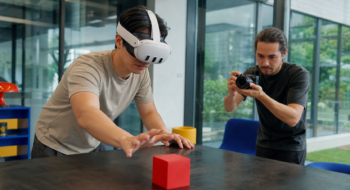
Google’s current quality guideline requires natural hand input as the baseline, including hand raycast behavior and support for input primitives. Controllers may enhance the experience, but the app should remain usable without them. Test selection, navigation, text entry, dismissal, recentering and recovery when tracking is temporarily lost.
Target size changes with distance. When using Jetpack XR, Google recommends at least 48 × 48dp and prefers 56 × 56dp or larger. A control that passes a flat-screen accessibility check can still be difficult to acquire in space if it is distant, crowded or moving.
Gate 4: Measure a frame budget, not “smooth”
The Android XR guideline gives explicit rendering targets: under 11.1 milliseconds per frame at 90Hz and under 13.8 milliseconds at 72Hz. It also specifies at least 1856 × 2160 pixels per eye. These numbers make the acceptance test concrete: capture frame timing under the most expensive scene, with representative assets, thermal state and input activity.
Startup has its own threshold. Google recommends a mean cold start below two seconds and a mean warm start below one second. Record the measurement method and sample count. An animated loading environment may feel polished while still delaying the first useful interaction.
Gate 5: Verify movement, boundaries and privacy
If the experience expects the person to move around the physical room, request passthrough or declare the large recommended XR boundary. Google notes that an app using the large boundary must remain fully playable without the boundary showing within a two-meter radius, with passthrough beginning to fade at 1.5 meters.
Declare high-fidelity hand tracking, eye tracking or controllers as required only when the app truly cannot function without them. Eye and hand tracking are privacy-sensitive inputs and require appropriate permissions. Prefer a lower-capability fallback for nonessential enhancements so device filtering and consent do not become accidental launch blockers.
Gate 6: Test the release artifact
Run the signed app bundle through the XR emulator, then on target hardware when available. Verify manifest-injected features from Unity or other packages rather than assuming the build tool chose the intended values. Use the Play pre-launch report, watch ANRs and Android Vitals, and test both the fresh-install path and an upgrade from the mobile artifact if the package is shared.
Large 3D and media assets still face Play size limits. Use Play Asset Delivery or Feature Delivery when appropriate, but test the first-run experience on a constrained connection. A headset user should not wait inside an empty environment with no progress or recovery path.
The release checklist
- State the device type and whether the experience is immersive or augmented.
- Confirm that a Play distribution path currently exists for that target.
- Select mobile or dedicated XR track and inspect the final manifest.
- Pass the complete workflow with natural hand input and no controllers.
- Measure frame, resolution, startup and ANR targets on the release artifact.
- Test boundaries, passthrough, tracking loss and privacy permissions.
- Validate asset delivery, device filtering, upgrade and rollback behavior.
This checklist is the release companion to Neyrotex’s broader smart-glasses product guide, not a second “what to build” page. Use the Spatial Computing hub for the category, the smart-glasses development guide for product fit, and the XR release review when a signed artifact needs a device, input and Play-track decision.
Sources
- Android Developers — Android XR app quality guidelines, updated July 17, 2026.
- Android Developers — Package and distribute apps for Android XR, updated May 19, 2026.
- Android Developers — Get started with OpenXR for Android XR, updated May 19, 2026.
- Android Developers — Android XR SDK Developer Preview 4, May 19, 2026.
Pingback: Unity ECS Mobile VR Optimization Guide