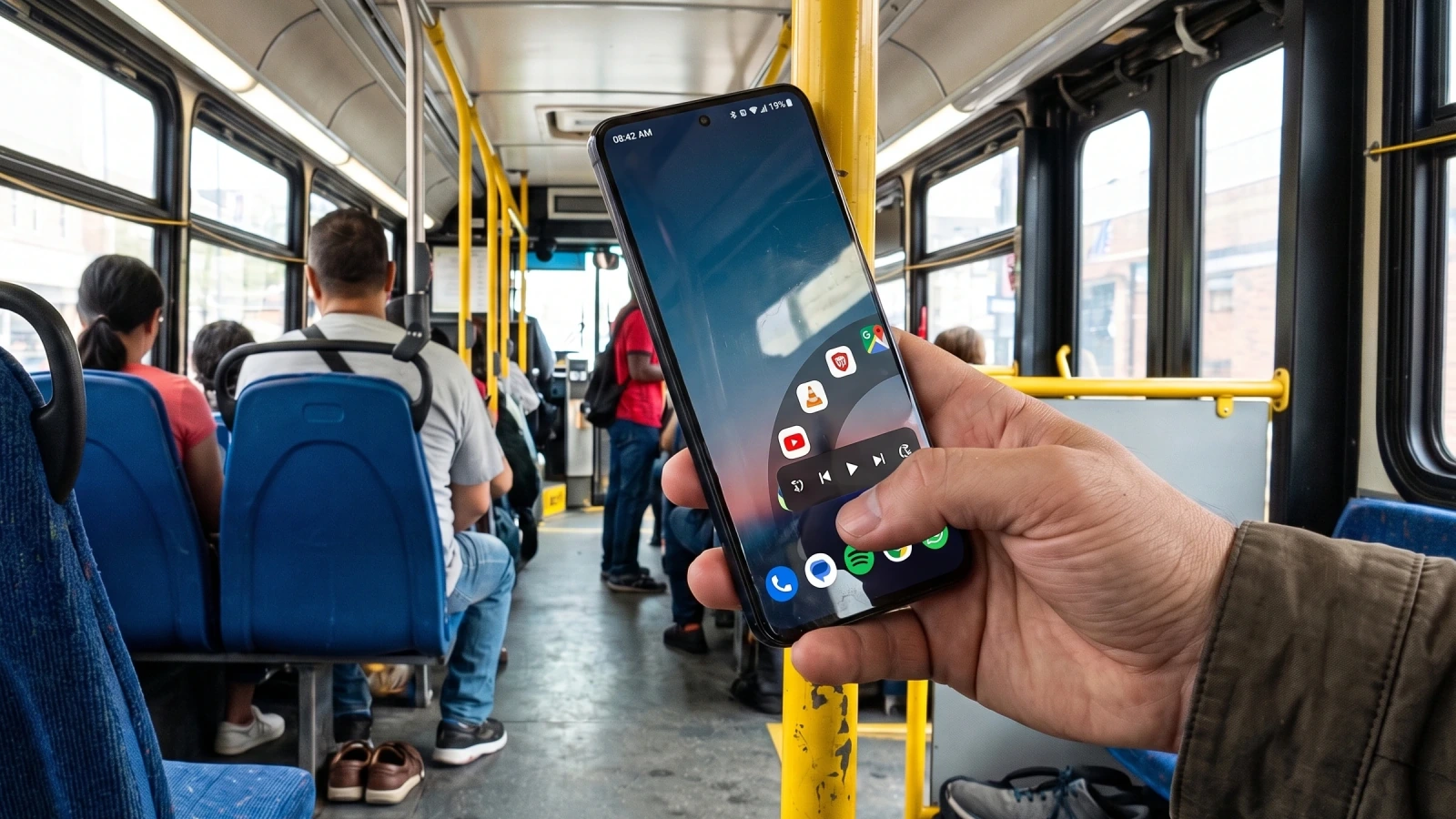
A large Android phone becomes a safety problem the moment a common action forces a grip change. One Hand Control offers an unusually broad answer, but its usefulness depends on a decision that should happen before habit takes over: test the controls, inspect the permission, and confirm that the service survives your phone’s battery policy.
The app turns configurable screen edges into gesture zones. A swipe or hold can go Back, open Recents, launch an app, scroll a page, show quick tools, or activate the Pro remote cursor for targets beyond thumb reach.
On a city bus, a standing commuter holds a large Android phone in one hand while the thumb pulls a control from the lower edge. This is an editorial reconstruction of the use case, not a Neyrotex device test.
What One Hand Control Android actually changes
The official feature list covers side, top, and bottom edge gestures, app shortcuts, quick tools, page scrolling, pause rules, and more than 55 assignable actions. Pro adds the remote cursor and macros, while the core edge-control model remains visible before purchase.
The remote cursor is the important distinction. Instead of shrinking the whole interface, the thumb steers a virtual target toward a control at the top of the existing screen, which can preserve context in tall apps.
The app’s Google Play listing showed more than 50,000 downloads, a 4.9 rating from 246 reviews, and an update dated September 23, 2026 when checked on October 9. Those are current store observations, not proof that the app will be reliable on a specific phone.
Document-based assessment: 81/100
The score uses the Neyrotex Mobile weighting and current public evidence. It is deliberately lower where only developer disclosures or store signals exist.
| Criterion | Score | Evidence-based judgment |
|---|---|---|
| Functionality | 22/25 | Edge gestures, 55+ actions, quick tools, scrolling, macros, and remote cursor cover more than basic one-handed mode. |
| Usability | 15/20 | Interactive setup and adjustable zones help, but edge conflicts and tuning create real setup work. |
| Price and value | 12/15 | A useful free path exists and Pro offers monthly, yearly, and lifetime options; exact current local prices were not independently verified. |
| Privacy and security | 13/15 | No Internet permission and local settings are strong claims, but Accessibility access is still a powerful trust decision. |
| Stability | 10/15 | Recent fixes and explicit troubleshooting help; OEM battery managers can still stop the background service. |
| Updates and support | 9/10 | The app, guide, and public repository show active 2026 maintenance and visible issue handling. |
The permission is the product boundary
Android grants One Hand Control an Accessibility Service role to detect configured edge gestures and perform the chosen system actions. Android’s own accessibility documentation explains that such services can observe interface events and act on behalf of a user, so the permission deserves more scrutiny than an ordinary notification toggle.
The developer’s privacy policy says the app has no Internet permission, requires no account, keeps settings on the device, and uses no analytics or tracking. The Google Play Data safety declaration says no data is collected or shared; optional notification access is described as a way to show current media information and seek within playback.
These are meaningful, checkable design choices, but they remain developer and store disclosures rather than an independent code audit. Google Play’s Accessibility API policy also requires non-accessibility tools to document the use and obtain appropriate disclosure and consent.
Reachability wins only when gestures stop fighting
Modern Android already reserves screen edges for Back and home gestures. One Hand Control addresses the collision with configurable zone heights, widths, sensitivity, and pause rules, but the correct values depend on the phone, case, hand, keyboard, and launcher.
A useful setup starts with one lower-side zone and two actions, not a wall of shortcuts. Add the remote cursor only after Back, Recents, typing, scrolling, and app drawers remain predictable.
The official guide also documents keyboard collision detection and per-app pause behavior. Those controls matter because a gesture tool that saves one reach but breaks text entry or a game has moved the friction rather than removed it.
Constraint-to-consequence map
| Constraint | Possible consequence | Acceptance check |
|---|---|---|
| System Back gesture shares the edge | Wrong action or accidental trigger | Try both directions in five frequently used apps |
| Keyboard occupies the lower screen | Typing collision | Write, edit, and select text in two keyboards or layouts |
| Accessibility service runs in background | OEM may stop it | Lock the phone, wait, then retest after normal idle time |
| Remote cursor reaches distant controls | Fine targets may require tuning | Open menus, close dialogs, and select small controls without a grip change |
Background reliability is partly an OEM problem
The developer’s official guide warns that aggressive battery managers from some Samsung, Xiaomi, OnePlus, and Vivo devices can stop the service. It recommends removing battery restrictions or allowing autostart where the manufacturer exposes those controls.
That warning improves the documentation score and lowers the stability score at the same time. A support page can explain the failure, but it cannot make fragmented OEM background policy disappear.
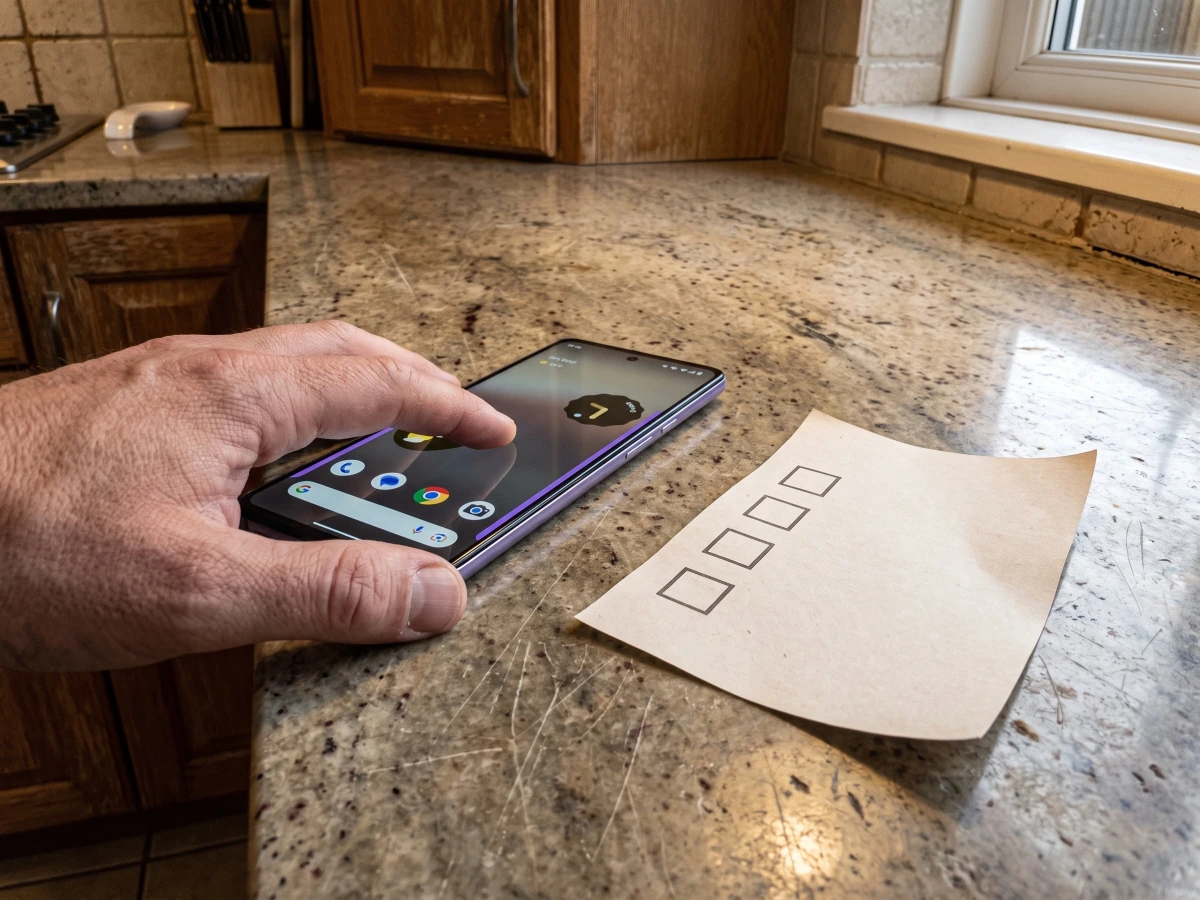
At a kitchen counter, a hand unlocks an Android phone beside a paper checklist after the device has been idle. The scene represents the stability test that public documentation cannot complete for you.
Price and support: value is clear, exact price is local
The official guide describes Monthly, Yearly, and Lifetime Pro options through Google Play. They unlock the remote cursor, macros, and additional customization, but the final amounts can vary by Play country and account; Neyrotex did not independently open the purchase sheet, so this analysis does not publish a dollar figure.
The public GitHub repository and store update history show continuing development. A small issue tracker is useful for transparency, though it is not enough evidence to estimate the defect rate of the installed app.
A fifteen-minute keep-or-remove test
- Record the boundary. Read the Accessibility disclosure and confirm that local-only operation is acceptable for your threat model.
- Start with two actions. Configure Back and one frequent shortcut on a single lower edge.
- Test collisions. Type, scroll, use system Back, open Recents, and navigate the five apps where mistakes would be most annoying.
- Test reach. Use the remote cursor on a top-corner menu and a small dialog control without changing grip.
- Test survival. Lock the phone, let it idle under normal battery settings, and verify the same actions again.
- Remove what failed. If tuning does not produce predictable gestures, revoke Accessibility access and uninstall rather than normalizing errors.
Verdict: a specialist tool, not a default permission
The 81/100 result comes from solving more than screen shrinking: the app can bring navigation, scrolling, tools, apps, and a remote cursor under one thumb. It loses points because the same breadth increases setup work, while Accessibility scope and OEM background behavior must be judged on the exact phone.
Choose it when a large Android phone repeatedly forces unsafe grip changes and the fifteen-minute test stays predictable. Skip it when stock one-handed mode is enough, when edge conflicts persist, or when the permission exceeds your comfort level.
For wider platform context, read Neyrotex’s Android 17 guide, the Pixel interface analysis, and the Mobile Development hub.