
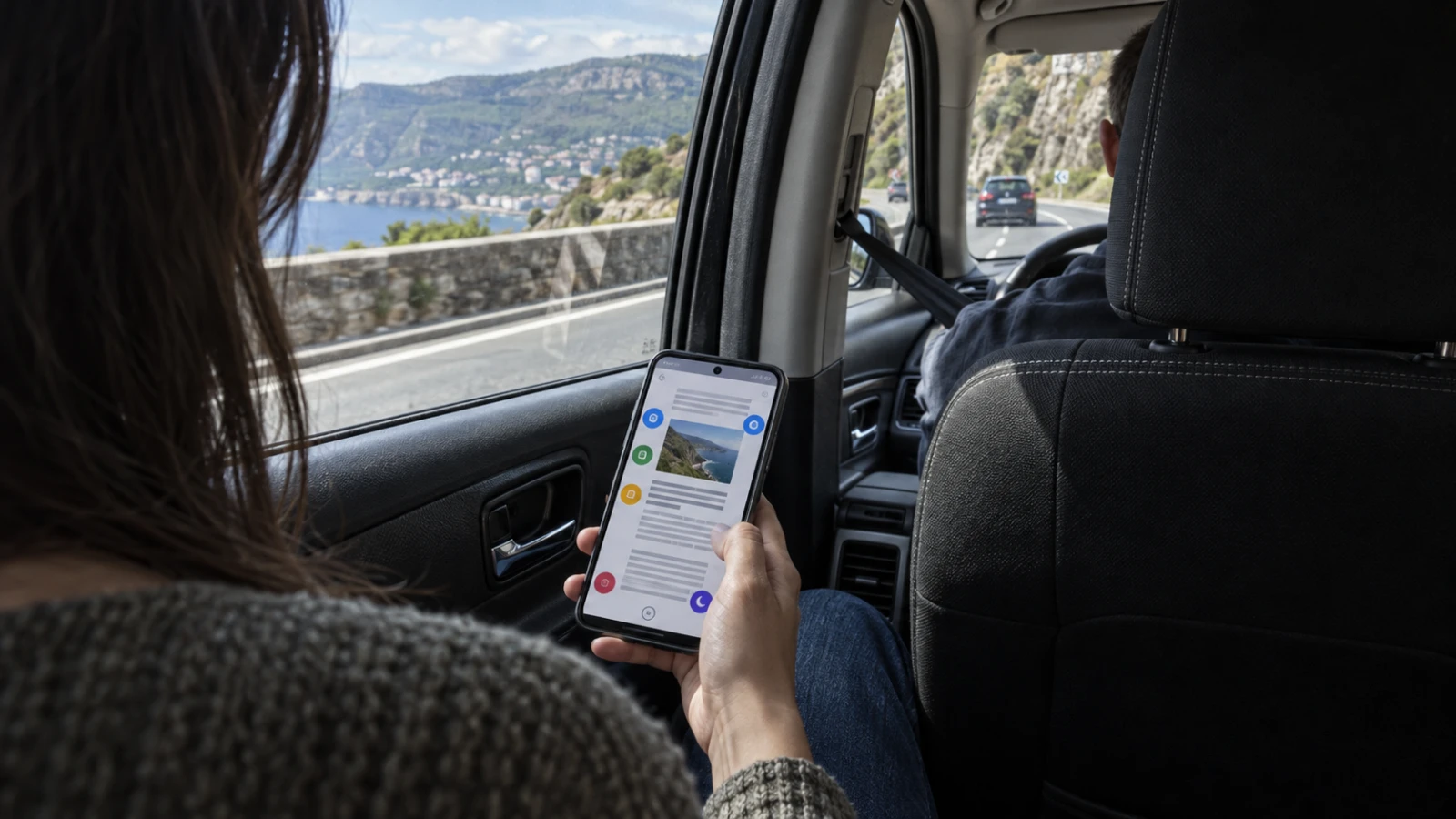
The first bad moment arrives when the passenger has already looked down, the road begins to curve, and the setting is still buried. A feature aimed at that moment needs a fast control and a screen treatment that does not make the phone harder to use.
Android Motion Assist joined Google’s September Android Drop for Android 17 phones. Google says the moving bubble overlay is designed to help reduce motion sickness for passengers, with manual, automatic, and visual tuning controls.
Android Motion Assist serves a passenger task
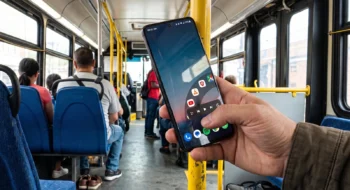
Google announced the feature in its September Android Drop. The company positions the overlay for people who use a phone in a moving vehicle and feel a mismatch between what their eyes see and what their body senses.
The bubbles move around the edges of the display in response to vehicle motion. They leave the main content visible and add a visual cue tied to acceleration, braking, and turns. Google describes a design goal rather than a medical outcome for each user.
Drivers should keep their attention on the road and leave the phone alone. Motion Assist does not turn screen use into a safe driving behavior, and it does not replace advice from a clinician for severe, frequent, or unexplained symptoms.
Claim and source ledger
| Claim | What the source supports |
|---|---|
| Availability | Google lists Motion Assist in the September 2026 Android Drop for Android 17 phones. |
| Visual treatment | Google shows moving bubbles around the screen edge. |
| Controls | The feature can start on its own, run from Quick Settings, and change shape, color, or opacity. |
| Outcome | Google says it is designed to help reduce motion sickness; the announcement does not promise a cure. |
Set up Android Motion Assist before the car moves
Confirm that the phone runs Android 17 and has received the September feature drop. Update system components, then search Settings for Motion Assist if the Quick Settings tile has not appeared.
Open the control before the trip, learn its location, and choose whether the phone should start it on its own. Automatic activation reduces the need to hunt through controls after motion begins, while the tile gives you a clear manual override.
Add the tile to the first Quick Settings page. Place it near controls you can recognize without a long search. That small change shortens the path from discomfort to a dark screen or a stopped overlay.
Use the feature page to identify the customization options. Start with a shape and color you can see in peripheral vision, then lower opacity if the bubbles cover controls or distract from the content.
Run a short passenger test
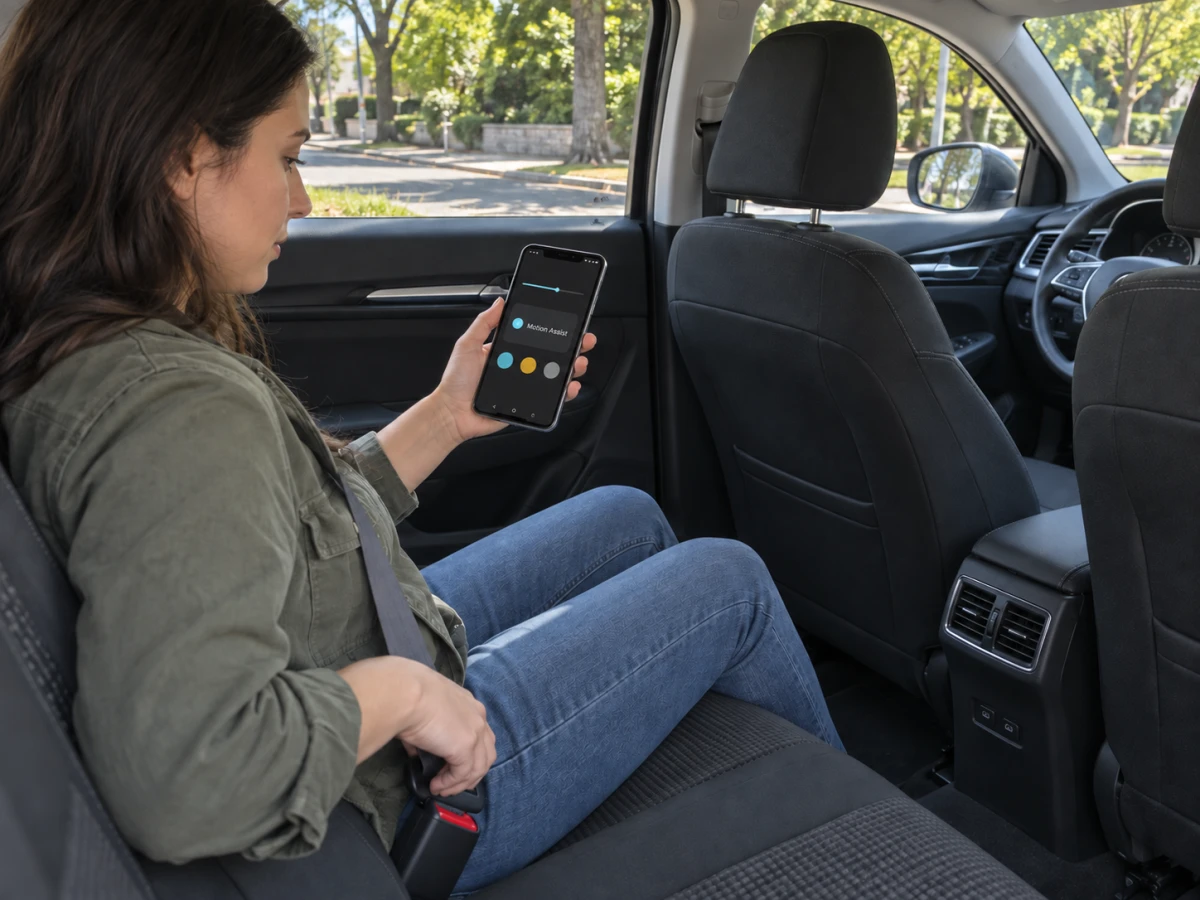
Choose a familiar route with another person driving. Sit in a passenger seat, enable Motion Assist, and use the same low-demand activity for five minutes, such as reading a saved article. Keep the phone position and screen brightness consistent.
Notice three points: how fast the bubbles respond, whether they obstruct the task, and how your body feels. Stop the test at the first clear increase in nausea, headache, dizziness, or eye strain.
Repeat on another day with the feature off only if you can do so without pushing through symptoms. A personal comparison can help you choose a setting, but it does not establish a medical effect or predict another passenger’s experience.
Try braking and turns rather than evaluating on a straight, smooth road alone. The overlay needs to stay legible during the motion that produces discomfort, and the screen content should remain usable without chasing bubbles with your eyes.
Tune the overlay around the task
Reading places text near the edges, so a lower opacity may work best. A game may already use bright motion near those edges, which can make a strong bubble color compete with controls. Video subtitles create another constraint near the lower frame.
Change one attribute at a time. Record shape, color, opacity, activity, seat, route, and how long you used the phone. Several small trials give you a clearer choice than one long trip with every setting changed at once.
Turn the feature off when it adds distraction or covers an important control. The Quick Settings tile should remain within reach, and automatic activation should still respect a manual decision to stop the overlay for the current trip.
Know when the phone is the wrong tool
A dark screen, a view through the window, fresh air, a stable head position, or a break may help more than another overlay. Choose the response that reduces discomfort instead of treating continued screen time as the goal.
Seek medical advice for severe or persistent symptoms, symptoms outside travel, fainting, hearing changes, or a new pattern after injury or medication. Motion Assist is a software feature, not a diagnosis or treatment plan.
The Neyrotex Android 17 MessageQueue guide covers an engineering change in the same release. Our Private Space checklist handles another system behavior. Follow the Mobile hub for Android platform updates.

Pingback: Googlebook Adaptive Android App Guide