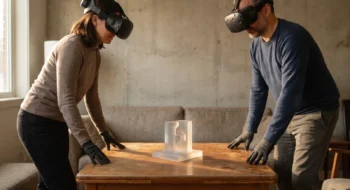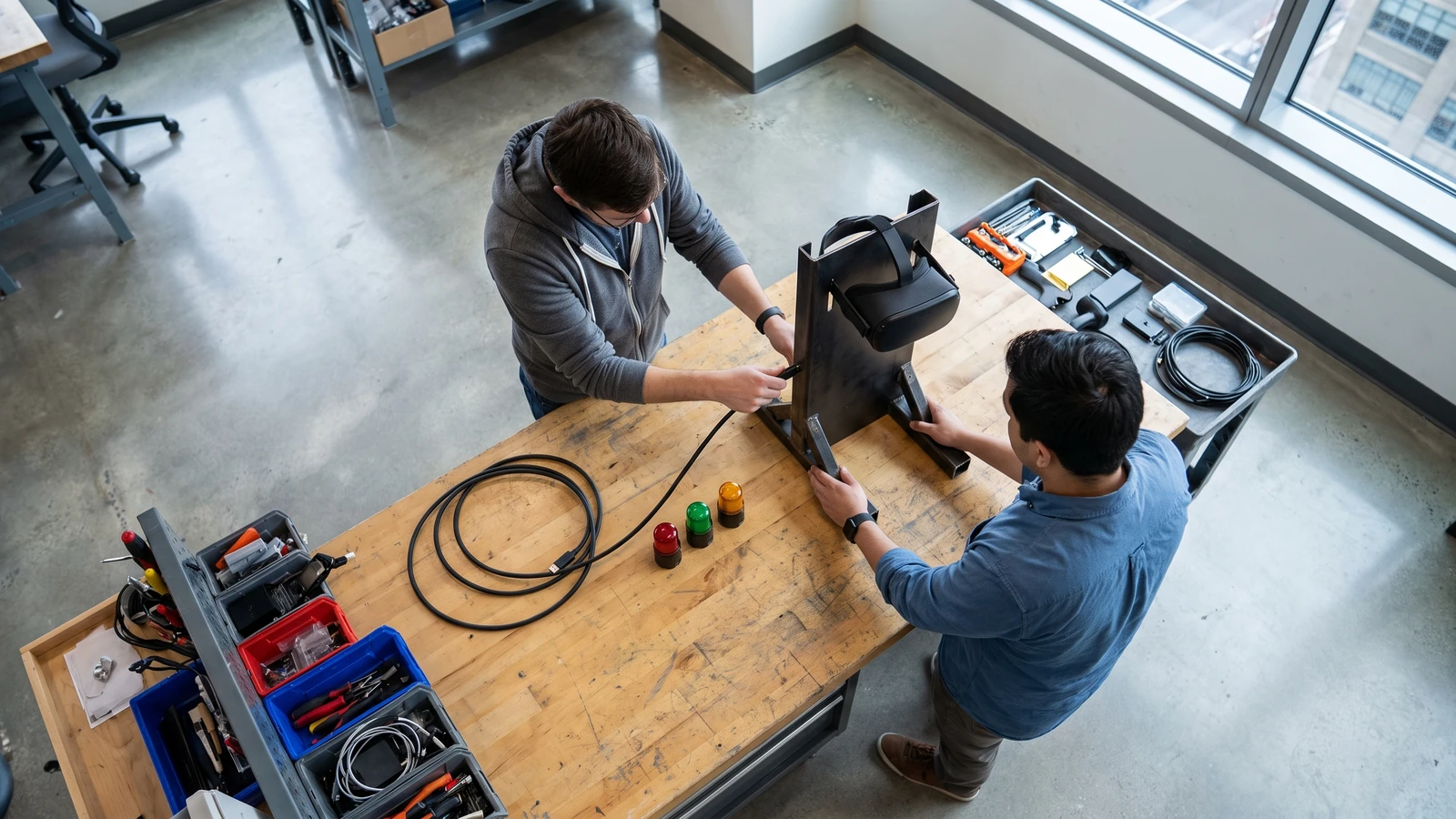
An XR developer changes one interaction, waits for editor state, builds, installs, enters the headset, repeats the path, and then tries to remember which revision produced the good run. Removing clicks helps. Losing the identity of the running build does not.
A Unity CLI XR workflow should automate the repeatable steps while making each boundary more visible. The useful unit is not a command; it is a checkpointed loop from source revision to the exact build running in the headset.
Start the Unity CLI XR workflow with an explicit support boundary
Unity’s CLI documentation marks the tool as experimental and requires Unity 6.0 or later. That label belongs in the adoption decision because command names, behavior, and integration details may change.
Use a dedicated branch or disposable project copy for the first trial. Record the editor version, package lock, CLI version, operating system, target platform, and the exact project command before comparing speed or stability.
The old path remains the rollback. If the CLI cannot attach to the editor, recover project state, or produce a traceable build, return to the known editor sequence instead of adding hidden retries that leave the project ambiguous.
Install Pipeline as a project dependency, not a magic remote control
Unity’s Pipeline package documentation describes the bridge used to control a project through Unity CLI. The documented flow includes commands such as unity pipeline install and unity pipeline list.
Review the package change like any other development dependency. Preserve the manifest and lockfile diff, confirm the project opens normally, and run a clean import before calling the integration ready.
Begin with a read-oriented task such as listing project state or evaluating a small editor query. Add mutating tasks only after the team can detect partial execution, restore the project, and explain which files or assets the command may change.
Seven checkpoints in the loop
- Source: clean revision and package lock.
- Editor: known Unity version and loaded project.
- Task: one named Pipeline operation with a timeout.
- Build: unique identifier embedded in the artifact.
- Device: serial, firmware, runtime, and refresh rate recorded.
- Run: fixed scene and interaction path.
- Evidence: result, trace, screenshot, logs, and rollback status.
Automate one repeated editor task before the whole loop
Unity’s XR workflow article recommends CLI and Pipeline for faster inspection and iteration, including Roslyn-based evaluation that can avoid a full domain reload for some tasks. It also proposes pairing the Unity tooling with Meta VR CLI for device work.
Choose the task that wastes the most repeated time and has the clearest outcome: query project state, toggle a documented setting, run a named validation method, or start a build. Measure the old and new path on the same project revision and machine.
Report median time across several runs, failure count, and recovery time. A single fast run is not a workflow result, and a command that saves thirty seconds but leaves an editor lock twice a day may consume more time across the week.
Make device identity part of the build record
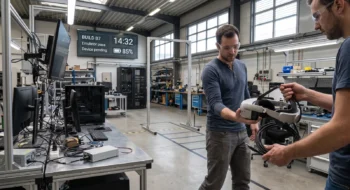
A build succeeding on the workstation does not prove that it installed, launched, rendered correctly, or met the headset frame budget. Record the commit, Unity version, package lock, build identifier, headset firmware, refresh rate, scene, and capture command together.
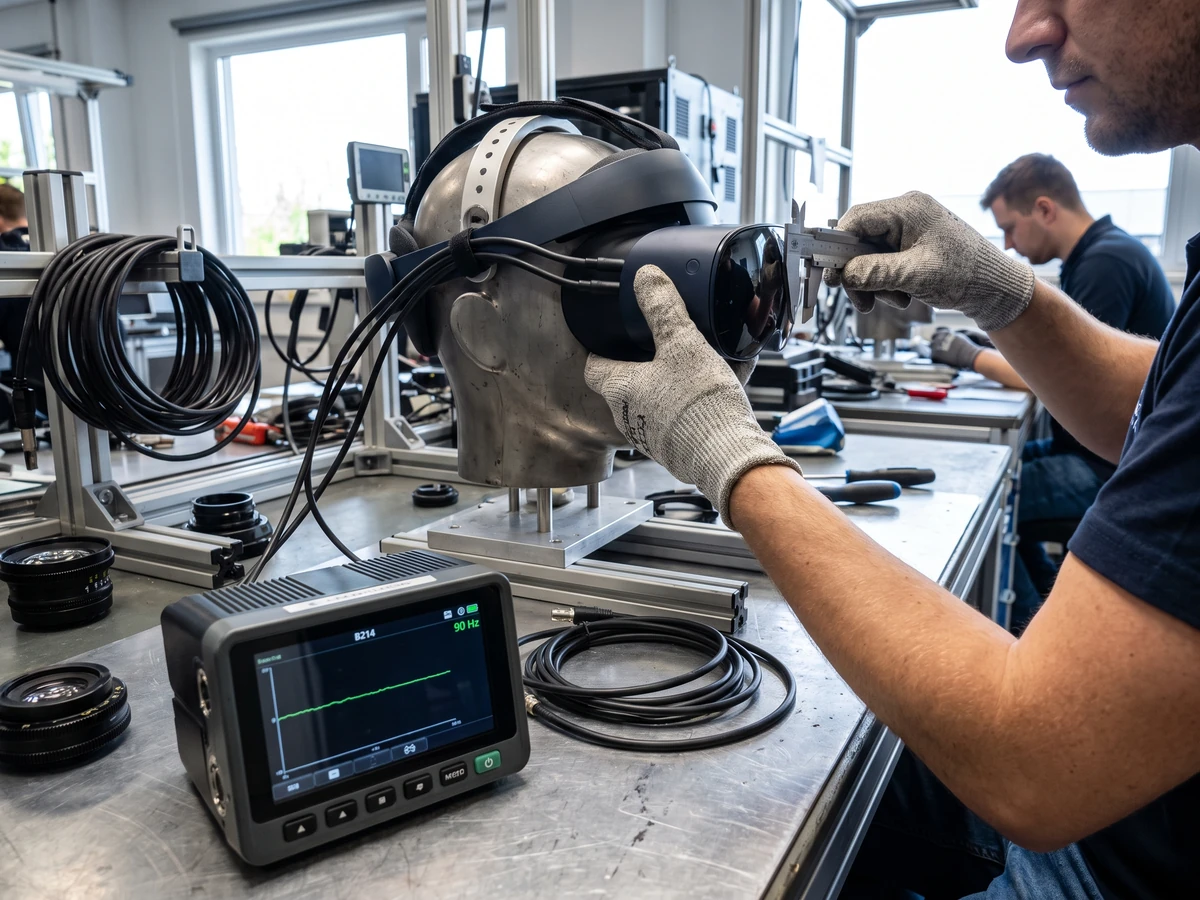
Use the device serial or an internal lab alias rather than “the Quest on the desk.” Capture installation output and launch status, then show the build identifier inside a small diagnostic surface that cannot be confused with customer UI.
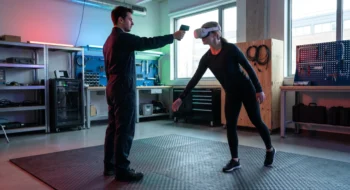
Run the same short interaction path after every material change. For locomotion, include enter, move, cancel, rotate, lose tracking briefly, recover, and exit. For rendering, preserve the camera route and scene state so the trace is comparable.
Use Meta VR CLI performance data as evidence, not decoration
Meta’s VR CLI performance guidance covers connected-device capture and analysis. A trace is useful when it is bound to a build, scene, refresh rate, device state, and repeatable user path.
Frame time changes with refresh rate, and thermal state can change across runs. Warm the device through a consistent preparation path, record power and thermal context, and compare the same segment rather than selecting the smoothest window.
Keep CPU, GPU, dropped-frame, memory, and loading evidence together. An average can hide a transition spike that causes visible judder at the exact moment a user turns or opens a panel.
Put timeouts and rollback around every mutating command
Set a maximum duration for editor evaluation, build, install, launch, and capture. When a timeout occurs, save the logs and current process state before killing anything, because forced cleanup can erase the failure mechanism.
Define what “clean” means after interruption. Check for asset changes, generated files, package edits, editor locks, orphaned build processes, and a device that still runs an older artifact.
Never let an automation loop silently rebuild after an ambiguous failure. A retry must either reuse the same immutable inputs or create a new build identifier with a linked reason.
Separate development speed from release confidence
The CLI can accelerate inspection, code changes, validation, and build orchestration. It cannot replace comfort evaluation, optical inspection, controller and hand behavior, boundary awareness, thermal observation, or the visual result inside a physical headset.
Keep an independent release pass on the device. The tester should confirm the installed build identity, run the critical path without relying on the automation transcript, inspect the captured evidence, and verify the fallback.
Our Unity ECS mobile VR guide covers system-level frame stability. The Meta XR Operator guide covers repeatable headset paths, while the hands-only locomotion guide supplies a concrete interaction sequence. Return to the Virtual Reality hub for adjacent device and platform work.